
 A simple example
<< Back to Classes index page
Introduction
In this first example, we will create a very basic class module which we'll call clsSimple. We'll give it some properties that we can set and change using normal VBA code.We'll also show how to use the Stop command in test code to leave us "live" in memory.
- Auto List Member
- Auto Quick Info
- Auto Data Tips
Instructions
- Select the Modules tab of the database window
- Use menu options Insert > Class Module
- Complete the following code:
Option Compare Database
Option Explicit

Public OrderID As Long
Public CustomerName As String
Public Value As Currency
- File > Save and save as clsSimple and close the VBA window.
- Now create some test code: In the Modules tab, click on New then Insert > Procedure with name TestSimple
- Complete the code:
Public Function TestSimple() Dim oSim As clsSimple Set oSim = New clsSimple oSim.OrderID = 1 oSim.CustomerName = "Fred" oSim.Value = 100.2 Debug.Print oSim.OrderID, oSim.CustomerName, oSim.Value Stop End Function - File > Save with name basTest
- Open the Debug Window by pressing Ctrl+G or by using the toolbar button
- Type TestSimple and press the Enter key
This will print out the values of the properties you've set in your program. The system should be highlighting the word Stop in yellow. The Debug Window should have shown the results like this:
TestSimple
 1            Fred           100.2
OK, it's nothing amazing, but it's a start. Let's make a few observations so far:
- Did you notice how Access offered you a list to choose from after
you'd typed oSim followed by the dot?
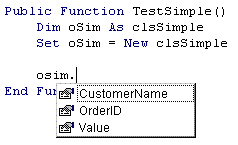
(This requires the Auto List Member feature to be turned on.)
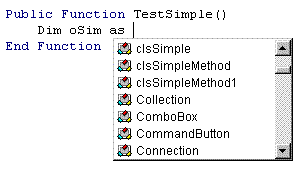
- Even when you were declaring the type with
Dim oSim As ...
Access already knew about your new class.
- If you use the menu option View > Object Browser (or just press F2 when in the Debug Window), you can search for clsSimple and see the Members of its Class listed out just like all the "real" classes that Access comes with.
Back to the instructions...
- Did you notice how Access offered you a list to choose from after
you'd typed oSim followed by the dot?
-
The Stop command in your procedure will have halted the program
and left it "live" with your object oSim still in memory.
You can use the Debug Window to make changes to the object's properties.
For example, type these commands in the Debug Window:
oSim.Value = 99.00

? oSim.Value
This should display 99, the value of the oSim.Value property you've just set.
- To finish the program, press F5 or Run > Go/Continue
What we've learned
This very simple example has shown us how to create a custom object clsSimple with properties OrderID, CustomerName and Value, and then set those properties and do something with them - even if it's only printing them out again.
Creating a property is as simple as declaring a public variable in the Class Module code.
It's also shown us how to set up a test program to leave us 'live" in the Debug Window to do test and other mischief with our objects.
More
As a further example, just open the Debug Window again (Ctrl+G) and type the following commands:
Set os = New clsSimple
? os.Value
__
os.Value = 199.99
? os.Value
__
? os.CustomerName
__
os.CustomerName = "Barney"
? os.CustomerName
__
? os.OrderID
__
os.OrderID = 33
? os.OrderID
__
You have just created a new object called os on the fly. The command that did this was
Set os = New clsSimple
Because you aren't "live" in a procedure, you won't get prompted with the auto list this time, but you are still able to assign and retrieve its properties.
More questions
What are the default values of our new object's properties when it's first created?
What happens if you mis-spell the name and type, say, os.Val instead of os.Value?
Does Access care about upper and lower case if you type os.Value or os.VALUE or OS.value ?
Contact us
To contact us or comment on this page, please send us a message.
This page first published circa 2000. Last updated 9 September 2025.

